How working together in one file works.
Read this once before you host a file with other people in it. It covers what happens to your .3dm, when it saves, who can edit what, and the two or three habits that keep a shared model out of trouble.
Who hosts, who joins
Only the person hosting a file needs a subscription. It sets how many files they can host and how many people fit in each one. Everyone they invite joins on a free account.
Any file it is invited into, with the same editing, chat and locks as the host. It cannot host a file of its own.
Solo and Studio accounts can join other people’s files too. Those do not count against the files they host.
A session, start to finish
One person hosts a file. Everyone else is invited into it. There is no separate upload step and no copy to hand around.
- 1Host the file. Drag a .3dm onto the drop box on your dashboard. It appears under Your files.
- 2Invite the people who need it. Enter their email under People in your files. They can open the file straight away, on any account, including a free one.
- 3Open it in Rhino. Everyone opens the same file from the RhinoCollab panel. A green dot on the dashboard row means a session is live.
- 4Model. Edits stream between sessions as they happen. Each person has a colour, and that colour marks their cursor and whatever they currently have selected.
- 5Push when you reach something worth marking. A push closes a numbered revision, so the state you just agreed on has a name you can come back to.
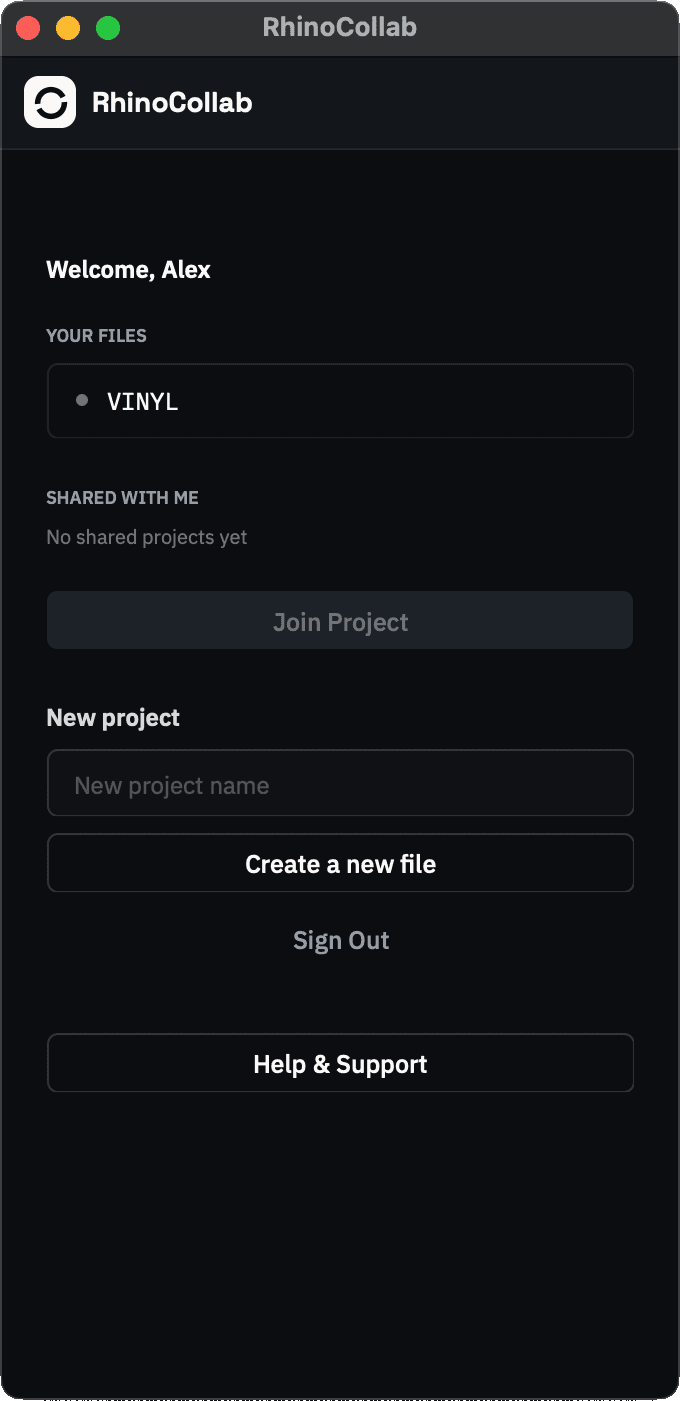
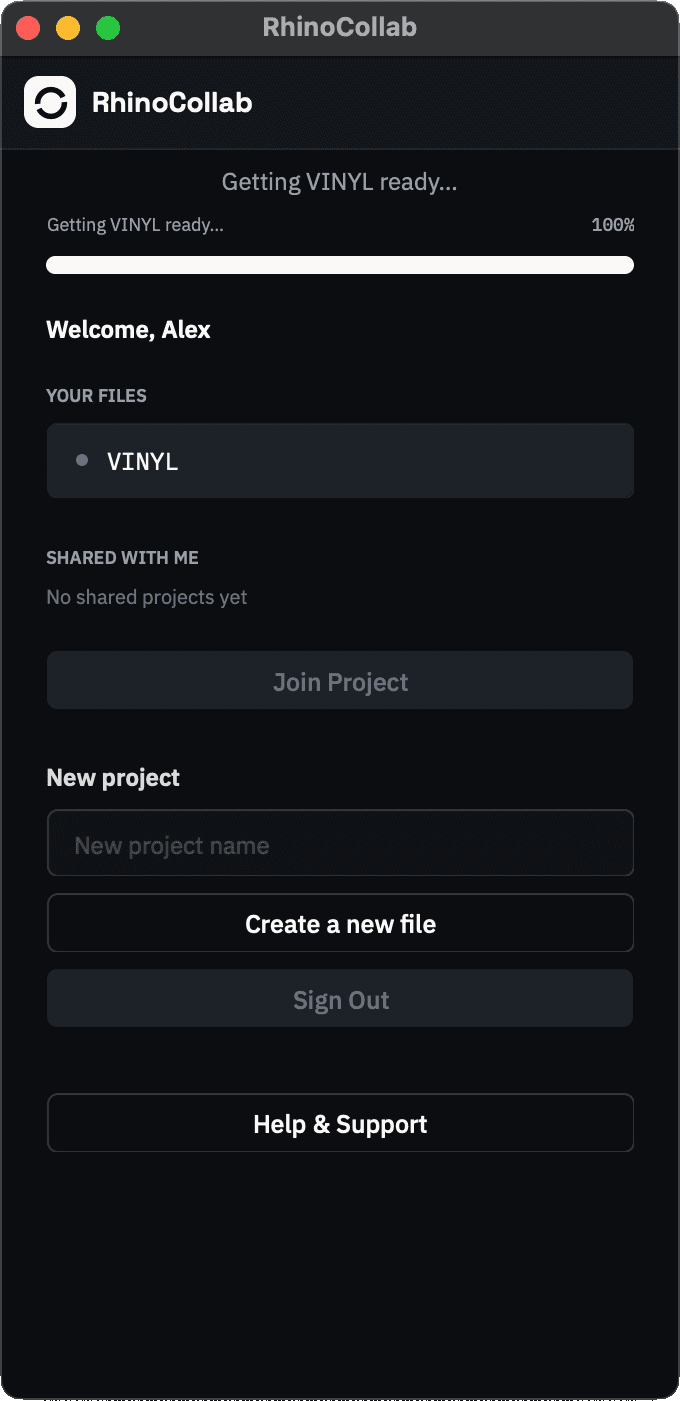
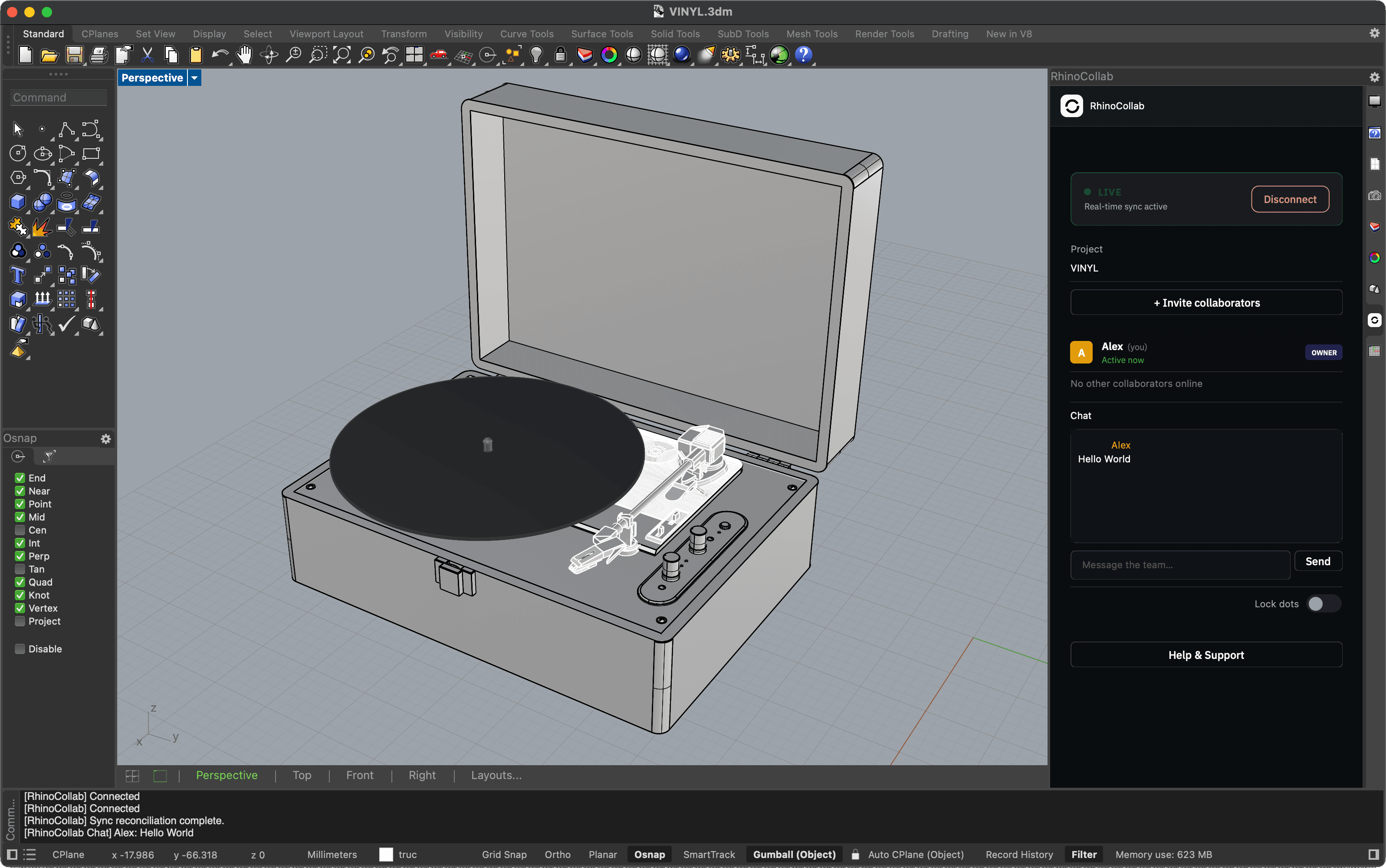
The panel in Rhino
Everything RhinoCollab adds sits in one docked panel. The viewport stays Rhino’s.
Features
Lock dots
When someone grabs an object, their name appears on it in their colour. That is the lock: while the tag is there the object is theirs, and you can see whose before you reach for it.
Chat
Type in the panel, everyone in the room sees it. Useful for the things that are faster said than modelled: who is taking which layer, why something was deleted.
Watch a session
The same session from both ends, side by side on one clock.
Where your file lives
Two copies, and it matters which one is which.
Saving and revisions
There is no save button to remember, and Rhino’s own save still does what it always did. The two work on different things.
Autosave, continuously
Every change is committed as it happens. You do not need to save to keep your work, and neither does anyone else in the room. If Rhino closes on you mid-session, the room still has what you did.
Ctrl+S still saves your local file
Rhino’s normal save writes the .3dm on your disk, exactly as before. Do it as often as you like. A revision sits on top of that. It records the shared state, not your local one.
A push creates a numbered revision
Autosave keeps you from losing work; a revision gives a point in the work a number. Push when you have finished something, a floor laid out or a bracket resolved, rather than on a timer.
Any revision can be restored
Pick a number from the history and the room goes back to it. Restoring replaces the current state for everyone in the file, so agree on it first, and note that the work after that point is what you are stepping away from.
Your dashboard’s Downloads section holds the revision archive and session-log.csv, which records who changed what, per revision.
Editing at the same time
Objects lock while someone is editing them. First grab wins.
You grabbed it first
It is yours until you let go. Nobody else can move, trim or delete it while you hold it.
Someone else has it
You see it locked, in their colour, with their name: the lock dot. Wait, or ask them to release it. You cannot overwrite it by accident.
Why it works this way
Merging two versions of the same surface is guesswork. Locking means there is only ever one edit to keep, so nothing has to be guessed.
Working around each other
Split the model by layer or by area and locks stop being something you notice. Two people on one bracket will queue; two people on two façades will not.
Safety measures
One rule matters more than the rest.
Work offline in a file that is shared
If you open a shared .3dm with no connection and model in it, your edits are not streaming to anyone and nobody else’s are reaching you. Two people doing that are building two different models under one filename, and locks cannot help, because nothing was there to lock. Reconnect before you start, or work in a file of your own and bring the geometry over afterwards.
Have a decent connection before you join
Edits stream as deltas, so RhinoCollab does not need much bandwidth, but it does need a stable line. A connection that drops every few minutes puts you in and out of the room, and each drop is a small window where your edits and everyone else’s diverge. Tethering to a phone is possible but complicated: mobile networks change addresses mid-session and stall when the signal dips, which looks like people silently leaving and rejoining the room. If a phone hotspot is all you have, treat the session as fragile: push more often and watch the connection indicator in the status bar.
Setting up a team
One person hosts each file. The host's subscription sets how many files can be hosted and how many people each one takes. Joining a file someone else hosts costs nothing.
Agree on how the model is divided before the first session. Layers are the easiest line to draw.
Decide who pushes. Revisions are more useful when they mean something to the team, not when everyone makes their own.
Check who is in the room before restoring a revision. It changes the file under everyone.